
SSB FAQs
Adding and Dropping Courses
How do I add/drop a class on Self-Service?
View the Register for Classes section of our website for details on adding and dropping classes.
How long can I add classes?
During your normal registration period, you will meet with your advisor to register to discuss registration for the next term and have the advising hold removed from your record. After a term begins, classes can only be added during the first seven class days of a fall or spring term (second class day for August/May terms). You will have to file an academic petition if you want to add a class after that period.
How long can I drop classes?
You can drop a class with no penalty through Self-Service Banner (Banner Web) during the first seven class days of the fall or spring term. After that, you can drop until the posted last day to drop for the term (check the academic calendar). If you want to drop after the posted drop date, you will need to file an academic petition.
If I am enrolled in only one course and I need to drop it, how can I drop the course?
Dropping your last class is considered officially withdrawing from the College. Please visit the Registrar’s Office to obtain the Official Withdrawal Form.
Course Overrides
How do I get a closed course overridden?
The CLOSED SECTION error occurs when students attempt to register for a class that is full. To resolve this error, students should register for another section of the course or select a different course.
Students have the option to see if an override is possible by requesting an override through the academic department offering the course. The student’s academic advisor is responsible for requesting the override. Please note academic departments cannot authorize an increase in the maximum enrollment or approve an override request if it will result in exceeding the classroom's fire code capacity.
If approved, the department will coordinate registering the student for the course.
The system says I need department (or dean or instructor) permission required. How do I get that?
The department (or dean or instructor) offering the course must grant permission to register. This is a restriction placed on the course by the department (or dean or instructor). You must contact the department (or dean or instructor) in order to obtain the appropriate override.
What is the overload procedure?
Please do not assume that overloads will be permitted. All overloads must be approved by the Vice President for Academic Affairs and Provost, and approvals will be based on a complete explanation of the extenuating circumstances that warrant an overload. Complete an academic petition (available on the Registrar’s Office webpage). If the overload is approved, the Registrar’s Office will process the overload request.
Full-time Student Status
How many hours do I need to be a full-time student?
Undergraduate students must be enrolled in at least 12 credit hours to be considered a full-time student in fall and spring semesters.
What happens if I drop below full-time?
Undergraduates registered for less than 12 credits, and graduate students registered for less than 9 credits, will be considered part-time students. Some areas that may be affected are financial aid, athletic eligibility, veteran’s affairs, immigration status and ability to reside on campus, as well as certain family and group life/health insurance plans.
Holds that Prevent Registration
I can’t register because of a hold. How can I find out the reason for the hold?
Holds can be viewed via Self-Service from the Student Profile. From your profile, click on Holds in the upper right corner to view active holds. You can click the arrow to the right of each hold to view the hold details. You can also view holds using the Prepare for Registration feature on the Registration landing page.
The From Date tells you the date the hold was placed. The To Date tells you when the hold will be released automatically. The Reason field tells you why the hold was placed. The Originator field tells you what office placed the hold. The Processes Affected field tells you what the hold will affect.
Click here to view a list of common registration/academic holds.
Maximum Credit Hours for Registration
How many credit hours can I register for?
Undergraduate students may register for 18 credits unless they have received permission to overload through the academic petition system.
Registering for Classes
What should I do to prepare for registration?
Prior to your registration date you should:
1. Review your Degree Works degree audit.
2. Use the Plan Ahead feature to select your courses.
3. Meet with your advisor to discuss your course selections. Your advisor is responsible for removing the advising hold on your record.
4. Check your registration status in Banner Web. View your Student Profile to check your registration status and times (be sure the correct term is selected in the upper left-hand corner; your status is noted in the upper right-hand corner).
Where can I find the class schedule?
You may view available courses by clicking Search for Classes on the Registration landing page.
How do I register online?
Students must register online through Banner Web. See detailed instructions here.
Where can I find the name of my advisor?
After logging in on Banner Web, click on Student Self Service, then select the Student Profile. You can view all of your active advisors from your profile.
Where can I see my class schedule on Self-Service?
After logging in on Banner Web, click the Registration and Courses icon and then the View Registration Information link.
Can I be moved out of a section that I’m already registered for?
Possibly. Class availability and times may change between the first time you register for courses and the first day of the semester. Occasionally, some sections may even be cancelled or extenuating circumstances require us to move students into another section of a course.
How do I know if my course is online or on-campus?
| Attributes | Code | Defined |
| Remote | ONLIN | All portions of the course are conducted online. No on-campus participation is required. This course has required synchronous course meetings at least once per week; the entire course may be fully synchronous, or part synchronous and part asynchronous. See the department for additional information. |
| On-Campus | MAIN | The course has an in-classroom component, and on-campus participation is required. Some portions of the course may be conducted remotely. |
How do I add classes using Plan Ahead?
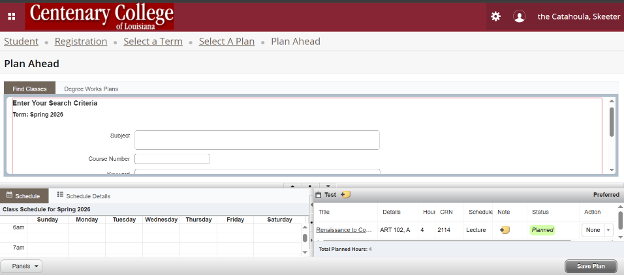
Log into Banner Web, click Registration and Courses, then Plan Ahead for Registration. You can either use the Search for Classes or Enter CRNs option. After you’ve identified the course, click Add to Summary, and repeat until you’ve entered all courses. Upon completion, under the summary panel, click on submit.
Click here to view the Plan Ahead for Registration video tutorial.
Registration Errors
When I try to register for a class, it says will not allow me due to errors? What are registration errors?
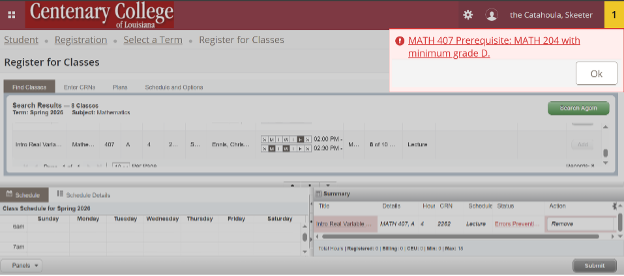
These are errors messages you might receive when you try to register, and you are not successful. For all errors, you must contact your advisor and inform him/her of the error message you have received (make sure you write down the information in the "Status" box). Your advisor will request an override through the appropriate process. To view a comprehensive list of registration errors, please click here.
When I attempted to register on Banner Web (Self-Service Banner) I received a Time Ticket Needed.
Students are assigned to a registration group according to the number of credits earned and issued a time ticket. Students must wait until registration opens for their group.
I received a “Registration Add Error”. What does this mean?
- Class restriction - Only students in a particular set of classifications may register. This means that if a course requires junior standing, and your classification after successful completion of the current term will only place you at sophomore standing, you may not register without obtaining a class override from the department.
- Department restriction - Only students pursuing majors and minors in a particular department may register for this course.
- Duplicate Course - You may only register for a single section of a course - you may not be placed on a waitlist if you are registered for a course.
- Major Restriction - The course is reserved for a certain set of majors. You may receive this error if you have not yet declared your major, or you have a different major than required by the course. Contact the department for assistance.
- Pre-requisite error - You do not currently meet the requirements of the course; prerequisites may be found in the course catalog. Often times courses have pre-requisites, such as successful completion of Calculus I in order to register for Calculus II.
- Time Conflict - the class times for two courses overlap or are at the same time (you can’t be in two places at once).
I have a level restriction error.
The LEVEL RESTRICTION error occurs when the student attempts to register for a specific course that requires a higher-class level (Jr, Sr). Eligible students may speak with the appropriate academic department to resolve this issue.
I have a major restriction error.
The MAJOR RESTRICTION error occurs when students attempt to register for courses that are reserved for a specific degree/major or groups of majors. To resolve this error, eligible students should register for another course or seek override permission from the academic department offering the course.
I have a maximum hours exceeded error.
A load in excess of eighteen hours must be approved through the academic petition system.
I have a TIME CONFLICT WITH XXXXX error.
The TIME CONFLICT error occurs when students attempt to register for courses that conflict or overlap by date and time. To resolve this error, students should register for courses on a different date and time or consult their academic advisor for assistance.
I have a Co-Requisite error.
The Co-requisite error occurs when students do not register for a group of courses that are linked together. Resolution: Students must register for all co-requisite courses at the same time.
I have an error message " course does not exist registration error ".
The CRN DOES NOT EXIST error occurs as a result of not using the correct CRN for a specific semester.
The numbering format for CRN (course reference numbers) are typically assigned as follows: Fall courses start with “1”, Spring courses start with “2”, May courses start with “3” and summer courses start with “4”.
The registration errors will display on the right side of the screen.
Please note: The Office of the Registrar cannot approve or issue overrides; you must contact your academic advisor to initiate the override request process.
Repeating Courses
What happens when I repeat a course?
Undergraduate students who repeat a course will have the cumulative Grade Point Average calculated using the grade from the highest attempt. The grade of the subsequent attempts that are excluded from the GPA will remain on the student's official permanent record with an “NG” noted as the final grade.
NOTE: Submit the Repeat/Replace request form located on the Registrar’s Office webpage as soon as you register to retake the course.
Searching for Classes
How can I quickly find all classes that carry a specific CORE designation (e.g., Humanities Exploration, Social Sciences Exploration, Symbolic Reasoning Exploration, Natural Sciences Exploration)?
CORE course codes are designated in the class schedule as course attributes. After logging into Banner Web, select Registration and Courses and click Search for Classes. Select the appropriate term and click Continue. On the Browse Classes landing page, click Advanced Search and select the specific CORE designation from the Attributes drop-down menu. Please note you’re able to select multiple attributes. Upon completion, click the “Class Search” button at the bottom to see the results.
Registration Reinstatement
My classes were canceled for nonpayment after add/drop registration, what do I need to do?
The student is required to contact the Business Office to begin possible Reinstatement Process.
© 2026 Centenary College of Louisiana